GRAPHIC DESIGN
Graphic Poster # 0132 by Rui Vieira
Drawing Day 2008 by Fossfor
Good Tutorials by The Photoshopping Penguin
Rss Sign logo by GizmoHunt.com
Fredag! by LolitaBlog
Artist of the week - Andrei khrjanovski by Animatrick
WEB DESIGN and INTERNET
How to stop widgets been deleted when uploading templates by LawnyDesignz
Small Details of a Blog Design by LaurenMarie
Wikipedia Outranks Google for Googlebot - LOL! by Emory Rowland
Innovative Web Design: The First Step to Succeed Online by Janice Ramirez
Vhiel's Corner Layout by Vhiel
45+ Free Premium WordPress Themes with Magazine or Grid Layouts by Pavel Ciorici
PHOTOSHOP RESOURCES
Photoshop & Me by DCLOUD
How to Make a Vector Brush in Photoshop by Carrie (backlink post)
Free Photoshop Shapes Downloads - Mega List of Free Custom Vector Shapes for Adobe Photoshop - Part I by AllGraphicDesign.com
BLOGGING
Twitter explained in plain english by Dave Brenner
Make Your Posts More Readable for Your Readers and See the Wonders Yourself by Liane
COOL EVENTS AND STUFF
Be Organized with Pelotonics by Nelle
A Beautiful Journey: Part 6 - Events & Marketing by QuaChee
Kumpulan berita bohong (news article in Indonesian) by Permana Jayanta
Sexy green car show. 2008 by DesignApplause
My thoughts on the new Indiana Jones movie by Angelface79.blogspot.com
SELF AWARENESS POST
Eight reminders in overcoming greediness by Robert
Face It. Fight It. Survive It. by Psiplex.com
World : What's the Solution for Terrorism? by Selerines
Food combining by Achmad Zaenuri

Saturday, May 31, 2008


Sunday, May 25, 2008
Fantasy Floral Photoshop Brushes - Part 5
It took a while for me to design another photoshop brush set and I've finally managed to design the Fantasy Floral Photoshop Brushes - Part 5. You will find 3 different brushes inside the download file.
I've designed simple swirl curls as I wanted to have Art Nouveau's design style. I think it is a good idea to design another series of Art Nouveau's style, after the Fantasy Floral Photoshop Brushes-Part 3 hits more than 25.000 Downloads and 185 Favorites at Deviant Art :D. Thank you all Deviant mates for the fave on my gallery.
Read More
I've designed simple swirl curls as I wanted to have Art Nouveau's design style. I think it is a good idea to design another series of Art Nouveau's style, after the Fantasy Floral Photoshop Brushes-Part 3 hits more than 25.000 Downloads and 185 Favorites at Deviant Art :D. Thank you all Deviant mates for the fave on my gallery.
Read More
Saturday, May 17, 2008
Biweekly Blogroll Links - May 17th 2008
GRAPHIC DESIGN
Star Wars Typography by Toon
Meticulous Design: Dramatic Headlines by Vivien
A half century of presidential campaign logo design by Jeff Fisher
Braintalk with Andrew Egenes by Sharebrain
The Color Wheel and Theory by Creative Curio
Why Computers Are Important To Designers by Modemlooper
WEB DESIGN
Change Your WordPress Admin Password! by afewgoodpens.com
The best CSS and Flash web galleries - Places to inspire by Alex
PHOTOSHOP RESOURCES
How to Convert the Photoshop Brushes to Paint Shop Pro Brushes, Fast and Easy Way by Graphic-Illustration.com
Design a Simple Rounded Content Box in Photoshop by OriginMaker
ART and PHOTOGRAPHY
Podcast - Terri St Cloud of Bone Sigh Arts by Zura
SPRINGTIME by Moonshadow
BLOGGING
Biggest and Most Comprehensive List of Money-Making Advertising Networks on the Net by Liane
30 Resource for Bloggers Carnival - 13th Edition by My Lucky Number 13
Make a Difference by Lauren
An Adsense Alternative? by Jordan McClements
TECH & GADGET
How to Protect Your PenDrive by Pachecus
Time Machine Coming Closer to Reality by Robert Di-Salvo
PERSONAL POST
Happy B' Day Swyty! by M.Fayaz
Star Wars Typography by Toon
Meticulous Design: Dramatic Headlines by Vivien
A half century of presidential campaign logo design by Jeff Fisher
Braintalk with Andrew Egenes by Sharebrain
The Color Wheel and Theory by Creative Curio
Why Computers Are Important To Designers by Modemlooper
WEB DESIGN
Change Your WordPress Admin Password! by afewgoodpens.com
The best CSS and Flash web galleries - Places to inspire by Alex
PHOTOSHOP RESOURCES
How to Convert the Photoshop Brushes to Paint Shop Pro Brushes, Fast and Easy Way by Graphic-Illustration.com
Design a Simple Rounded Content Box in Photoshop by OriginMaker
ART and PHOTOGRAPHY
Podcast - Terri St Cloud of Bone Sigh Arts by Zura
SPRINGTIME by Moonshadow
BLOGGING
Biggest and Most Comprehensive List of Money-Making Advertising Networks on the Net by Liane
30 Resource for Bloggers Carnival - 13th Edition by My Lucky Number 13
Make a Difference by Lauren
An Adsense Alternative? by Jordan McClements
TECH & GADGET
How to Protect Your PenDrive by Pachecus
Time Machine Coming Closer to Reality by Robert Di-Salvo
PERSONAL POST
Happy B' Day Swyty! by M.Fayaz
Friday, May 16, 2008
Graphic Identity Blog Updates
I have been checking out Graphic Identity blog stats performance over the past few months. The result shows me of how some graphic design articles, tutorials, and free design box posts has always been getting repeated visits on specific keywords, and it make me think to have things organized better.
I just add up few more features on the sidebars. You can see that now you can access the most popular post in this blog as I have list of “Most Commented Post” links. Beside featured post list that has image thumbnails for each link, I think by adding another kind of list would lead you more to numbers of resources that might be useful for you to read.
Another improvement for this blog is “Sideblog & Events” feature list that will show you the new updates of Graphic Identity and recent blogosphere news or events. You can find this link list at the bottom of very right sidebar.
Another thing that I want to mention for clarification is that now I don’t do link exchange. But if you want to link the Graphic Identity blog URL permanently to your blog, you will have a free website or blog design review from me. Just contact me via email if you are interested.
In June, Graphic Identity blog and friends who are also the members of Blog Catalog Graphic Design Group will start a regular graphic design blogging activity. I will tell you about the idea of this new event in another post soon, so you will get the details and drop us feedback or comment before we launch it. Just for a clue, this blogging activity will choose one of the blog’s participants every month as hosted blog for new round up blogging activity. As I thought this will be fun for you who have a new blog and you want to increase your blog authority and backlinks from related websites. What kind of activity that I mean exactly? :D Get the answer by subscribing to my feed now? So you won’t miss it ;)
OK, now it’s time for the main update of Graphic Identity blog. Here is a collection of articles round up and some recent posts that I wrote for other blogs in social blogging activity. I have also included the graphic designs I made after I’ve joined a contest and sponsoring few contest months ago.
Guest Post Blog
8 Effective Tips to Increase your Email Subscribers
edited by Abhinav Sood
Work on Increasing your Feedburner Email Subscribers!
edited by Abhinav Sood
Graffiti - Graphic Design Developed From Older Cultures
edited by Dale
Blogging Activity Events
Interviewing Jacob Cass!
submitted for Estetica Graphic Design Cross Interview event at Estetica Graphic Design Forum
Bloghology
Graphic Identity was interviewed by Mert Erkal for Bloghology E-book free download. Containing list of bloggers from across the world.
The Design Forums and Design Niche Social Media Sites you always wanted for
Submitted for Graphic Design Group Writing Project Articles at Just Creative Design
Things to Consider Before You Join a Flickr Pool
Submitted for Social Media Mega Project Articles at Epic Edits
Redditers – What They Tend to Do?
Submitted for Social Media Mega Project Articles at Inspiration Bit
Blog Action Day : Environmental Awareness
Submitted for Blog Action Day 2007 "Environment" theme
Graphic designs

Graphic Design Package for Christine Senter, the winner of Feed Flare Contest
Event: Contest Sponsor of Feed Flare 1st Contest at Feed Flare.com

Graphic Header Design for Dexter, the winner of Just Creative Design Contest
Event: Contest Sponsor of Graphic Design Group Writing Project at JustCreativeDesign

Poster Design contest submission
Event: What is graphic design poster contest at Verlee’s Blog
I just add up few more features on the sidebars. You can see that now you can access the most popular post in this blog as I have list of “Most Commented Post” links. Beside featured post list that has image thumbnails for each link, I think by adding another kind of list would lead you more to numbers of resources that might be useful for you to read.
Another improvement for this blog is “Sideblog & Events” feature list that will show you the new updates of Graphic Identity and recent blogosphere news or events. You can find this link list at the bottom of very right sidebar.
Another thing that I want to mention for clarification is that now I don’t do link exchange. But if you want to link the Graphic Identity blog URL permanently to your blog, you will have a free website or blog design review from me. Just contact me via email if you are interested.
In June, Graphic Identity blog and friends who are also the members of Blog Catalog Graphic Design Group will start a regular graphic design blogging activity. I will tell you about the idea of this new event in another post soon, so you will get the details and drop us feedback or comment before we launch it. Just for a clue, this blogging activity will choose one of the blog’s participants every month as hosted blog for new round up blogging activity. As I thought this will be fun for you who have a new blog and you want to increase your blog authority and backlinks from related websites. What kind of activity that I mean exactly? :D Get the answer by subscribing to my feed now? So you won’t miss it ;)
OK, now it’s time for the main update of Graphic Identity blog. Here is a collection of articles round up and some recent posts that I wrote for other blogs in social blogging activity. I have also included the graphic designs I made after I’ve joined a contest and sponsoring few contest months ago.
Guest Post Blog
edited by Abhinav Sood
edited by Abhinav Sood
edited by Dale
Blogging Activity Events
submitted for Estetica Graphic Design Cross Interview event at Estetica Graphic Design Forum
Graphic Identity was interviewed by Mert Erkal for Bloghology E-book free download. Containing list of bloggers from across the world.
Submitted for Graphic Design Group Writing Project Articles at Just Creative Design
Submitted for Social Media Mega Project Articles at Epic Edits
Submitted for Social Media Mega Project Articles at Inspiration Bit
Submitted for Blog Action Day 2007 "Environment" theme
Graphic designs

Event: Contest Sponsor of Feed Flare 1st Contest at Feed Flare.com

Event: Contest Sponsor of Graphic Design Group Writing Project at JustCreativeDesign
Event: What is graphic design poster contest at Verlee’s Blog
Sunday, May 11, 2008
How to create Vector Photoshop Brush
Today I'm going to show you how to create vector photoshop brush. You have probably know, that you can define anykind of graphic image as photoshop brush. If you want to create a specific graphic object with your own creativity... Why don't you start it by creating a vector graphic using Adobe Illustrator? My photoshop brush set collections set are done primarilly by Illustrator. Why? It is simply because Illustrator has a lot better tools to draw a graphic object from scratch than Photoshop. This kind of graphic that is made in Illustrator, will be known as vector graphic. Lets begin the tutorial now!
Step 1 - Draw an image vector using Illustrator
Use black foreground and white background when you start. This is important to have sharp contrast when you are going to define your brush set in Photoshop.
Resize the vector graphic using Scale Tool (s) if you want to set the brush set in certain resolution.

Step 2 - Saving the file as EPS format
After you are finished editing your vector graphic in Illustrator, save the file as EPS format, then open it in Photoshop.
As you can see, by default there your EPS file will show no background because Photoshop only capture the black shiluette of your graphcis and the white background will be converted as transparent.

Step 3 - Defining Brush Preset
In the Photoshop menu, go to the menu Edit > Define Brush Preset, and name your brush as your wish. Below the thumbnail view of your brush, you can see its resolution.

If you want to be sure that your Photoshop brush has already listed in the set picker, just find to the Photoshop brush option and click the little arrow shown below:

Step 4 - Saving the Brush Set
In the Photoshop menu, go to the menu Edit > Preset Manager. On the Preset Manager dialogue box, select "Brushes" Preset Type and choose the brush you want to save. If you want to select multiple brushes, just hold shift key and click the brush thumbnail inside the preset box one by one. Push the "Save Set" button, and you will have the brush set saved as .ABR file.

Voilà! there you go! you are now having a vector photoshop brush now and it is ready to use :D

Related Post:
Step 1 - Draw an image vector using Illustrator
Use black foreground and white background when you start. This is important to have sharp contrast when you are going to define your brush set in Photoshop.
Resize the vector graphic using Scale Tool (s) if you want to set the brush set in certain resolution.

Step 2 - Saving the file as EPS format
After you are finished editing your vector graphic in Illustrator, save the file as EPS format, then open it in Photoshop.
As you can see, by default there your EPS file will show no background because Photoshop only capture the black shiluette of your graphcis and the white background will be converted as transparent.

Step 3 - Defining Brush Preset
In the Photoshop menu, go to the menu Edit > Define Brush Preset, and name your brush as your wish. Below the thumbnail view of your brush, you can see its resolution.

If you want to be sure that your Photoshop brush has already listed in the set picker, just find to the Photoshop brush option and click the little arrow shown below:

Step 4 - Saving the Brush Set
In the Photoshop menu, go to the menu Edit > Preset Manager. On the Preset Manager dialogue box, select "Brushes" Preset Type and choose the brush you want to save. If you want to select multiple brushes, just hold shift key and click the brush thumbnail inside the preset box one by one. Push the "Save Set" button, and you will have the brush set saved as .ABR file.

Voilà! there you go! you are now having a vector photoshop brush now and it is ready to use :D

Related Post:
Subscribe to:
Posts (Atom)
Featured Post
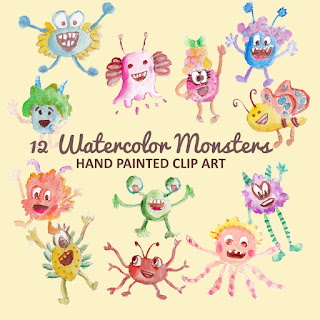
Monster Illustration Vectors that Work
Not all monsters are scary and we can apply them in a design composition or illustration. You may want to search bunch of new created monst...
Each of brush is categorized as small in size (850px - 900px).
I would like to remind you that all of my 'Free Design Box' files are FREE (for personal or commercial use). But after I found that my previous Photoshop brushes set were hijacked by someone else, please read: Legal Usage to employ Graphic Identity's 'Free Design Box' files.
If you like my Photoshop Brushes please give comment before you download them because I will appreciate any feedback from you.
Don't miss out to download my next photoshop brushes series by subscribing to my feed!
NOTE :
- I love your feedback, and that’s why these free design box files now has a plain .ABR file to download directly…I also included compressed .ZIP file instead of .RAR. file so you can unzip the smaller size file or extract the file later if you need it. (You must have WinZIP or WinRAR software installed to your computer for that).
- Thanks to d3c3nt-gurl, who send me a feedback of how should I provide PNG files. Since this can be useful for PS 7 users.
- Some of you probably don't know how to install brush set, and for that reason I have a quick tutorial: How to Install Photoshop Brush Set.
UPDATE:Graphic Identity - Fantasy Floral Part 5.abr (176.39 KB)
Graphic Identity - Fantasy Floral Part 5.zip (92.34 KB)
Graphic Identity - Fantasy Floral Part 5.rar (88.62 KB)
Graphic Identity - Fantasy Floral Part 5 (PNG).zip (146.56 KB)
Be sure to check this design set also
Fantasy Floral Vectors
Related Post: