Monday, June 14, 2010

Pre Tags Styling Tutorials & Resources


The ‹pre› tag is used to display preformatted text or code snippet to a web page. Some web design related blogs would use simple plugin that easily post syntax-highlighted code with its complete functionality (ie: view source, copy to clipboard, print). However, you can style this ‹pre› element to appear neat, stylish and usable by having deep understanding of how this web element works especially in different browsers. Here are some tutorials and resources about ‹pre› Tags Styling to get you start with.


Styling Code Snippets with CSS by Soh Tanaka


Read More

Monday, April 19, 2010

Solomon - A Decorative & Text Type Family


The new Solomon font is characterized by well-finished geometric designs as well as optimized kerning. The type family includes 12 design styles divided into text family and display (or decorative) family group.

Read More

The Solomon deco pack is created using ornamental work with organic forms, such as spiral or circular elements for the descender, ascender and also for the arc part of certain characters.

You can find both maximum and minimum variations, and that makes Solomon is great for headlines of all sizes or text blocks.

Use and combination of both groups - deco and text family to get unique effect results!

Download Solomon Normal for free until May 10 2010 :D


Related Post:

Friday, April 2, 2010

FontFriend - a Web Typography Tool

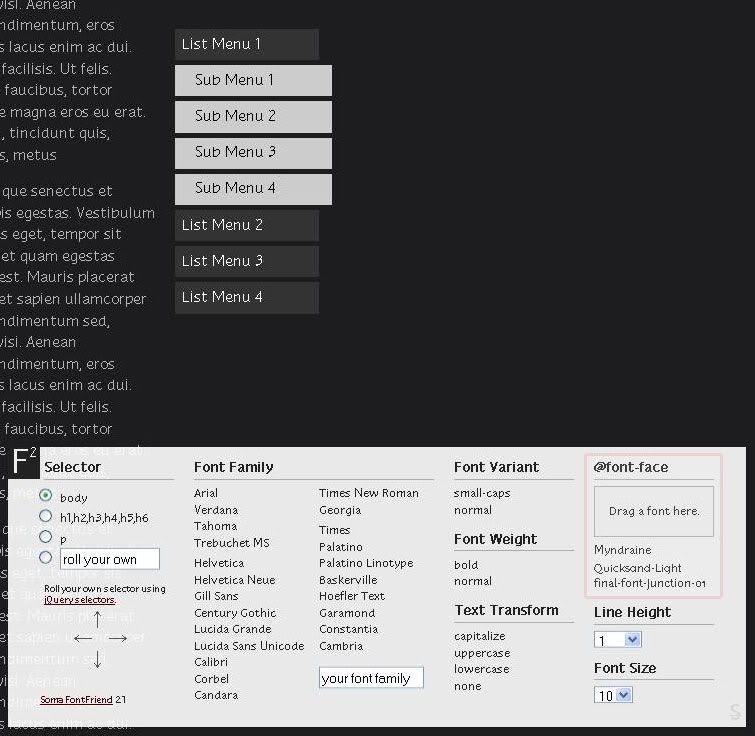
FontFriend is a tool for web designers to check the web typography in any document without editing code or reloading pages. With this bookmarklet, you can fast preview the use of font and font styles directly in the browser.

FontFriend
Hit on the image to enlarge


Read More


In Firefox 3.6+ browser, this font previewing can be enhanced for more, as you just need to drag and drop font in the @font-face box section (see the preview image marked with red square above).

I've tested these fonts: Junction, Myndraine, Quicksand using FontFriend, and I am quickly in love with Myndraine. Very nice font for any headings and paragraph texts :)

Check the detail to use the FontFriend or watch the demo video on the source page to learn more about it.


Related Post:

Wednesday, March 17, 2010

20 Lomo Cross Processing Photoshop Actions


Since the beginning of the 90's, Lomographic community worldwide produce a flood of authentic, colourful, crazy, off-the-wall, unfamiliar snapshots with a small Lomo LC-A camera. Lomography emphasizes casual, snapshot photography. Characteristics such as over-saturated colors, off-kilter exposure, blurring, "happy accidents," and alternative film processing are often considered part of the "Lomographic Technique."

Read More

Somehow to have the Lomo look and feel in your photos, it is not necessary for you to have a special Lomo Camera. You can create this effect using Photoshop Actions.

Here are 20 selections of Lomo Cross Processing Photoshop Action for you to experiment with. You can try different colors cross processing, create a 'Fish Eye' Lomo effect or brilliantly yield the retro style to your photos in a few clicks with it.

If you're a truly passionate Lomographer, don't miss some Lomo resources icluded in the end of this post for inspirations and to link your works to some Lomographic communities.


Lomo-Cross Processing Action by ~efete-stock


Lomo Fish Eye by ~zin29


Tilt-Shift and Lomography (Auto Holga) Photoshop Actions


PS Action--Retro Love by ~pseudonymfreak


Lomo Effect - PS.Actions - by ~photoshop-stock


Action 3 by ~ZeroComrade


Action 5 in #Ps-Actions by ~ZeroComrade


Action 2 by ~ZeroComrade


Lomonia by ~ashley-nash


lomold action by ~turunchuQ


Photoshop Lomography Photo Action


Lomo PS Action


Vintage Lomo Effect Action


Lomo Action Set by ~WingsOfAHero


action no.8- lomo pink by ~bellalleb-stock


Vintage Lomo Effect by ~NamfloW


LOMOTOSHOP: ActionSampler by ~NELZ


Lensbaby Action by ~tammy-angela


Lomo1 by ~zin29


Lomo2 by ~zin29


TUTORIALS & RESOURCES
Cross-Processed Lomo Effect - Photoshop Tutorial
How to make digital photos look like Lomo Photography
Lomography.com
Creating a Cross Processed Effect in Photoshop


EXAMPLES
Showcase: Lomography
The Colors of Cross-Processing - Sample Shots for many Slide Films by mephisto19
40 Amazing Lomography wallpaper and Tutorials
The Disturbing Beauty Of Oversaturated Pictures and Lomography


FLICKR POOLs
Cross Processing - FILM ONLY
Lomographic Society International
Lomography for non-snobs
e-Lomography


Related Post:


Saturday, February 13, 2010

How to Create Favicon using IconBuilder Filter in Photoshop

Everyone should have known what Favicon is and its significance. There are great numbers of online favicon generators and tutorials that explain how to create using various graphic tools or Photoshop. In a matter of branding and positioning, it is fairly important for websites to connect their readers with this small graphic called favicon.

Few weeks ago, I created a favicon for my web-portfolio project. The result wasn't that good because I got crisp edges when I barely resized it in as tiny as 16 x 16 pixels size.

While I kept trying, one of my good friend Vaughan Risher suggested me to try IconBuilder. Big thanks to Vaughan, because this Photoshop filter plugin has produced some very high quality favicon files and it is really worth to try.

Icon Builder

Read More


The result is pretty amazing. Here's how:

First of all, you have to download the IconBuilder Photoshop filter plugin for Windows. If you are a Mac user you can download IconBuilder for Macintosh.

To install IconBuilder for Windows, copy the entire contents of the IconBuilder 2.0 folder into the Photoshop plug-ins folder. By default, the path to the plug-ins folder is:

C:\Program Files\Adobe\Photoshop ##\Plug-Ins (where ## is the version number you are using.)

Launch your logo design file that you wish to appear on your website as favicon. If your logo PSD file is consist of multilayered graphic, you have to merge the layers before you go to the next step.

Photobucket

Inside the zipped file, you'll also find Windows.psd. Open the file in Photoshop and you will see some kind of grid framework to start with. There are boxes displayed in 4 rows which represent 4 different sizes of icons framework in 48px, 32px, 24px and 16px. Each row consist of 3 icon template boxes. Deactivate the visibility of Sample Icon layer.

Photobucket

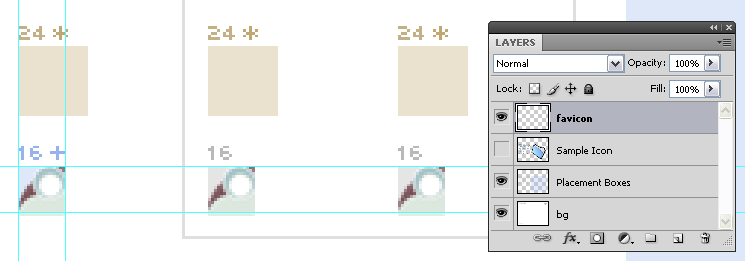
Copy the merged logo to the Windows.psd file and resize it to fit the first 16 pixels box. In order to have perfect quality of placement, you can zoom-in your work canvas in 1200% magnification and use guides if necessary.

Photobucket

Duplicate the well set logo layer twice and put them on the two other boxes as careful as when you did it for first one. Merge those three identical layers whenever you're done.

Photobucket
Click to see bigger image

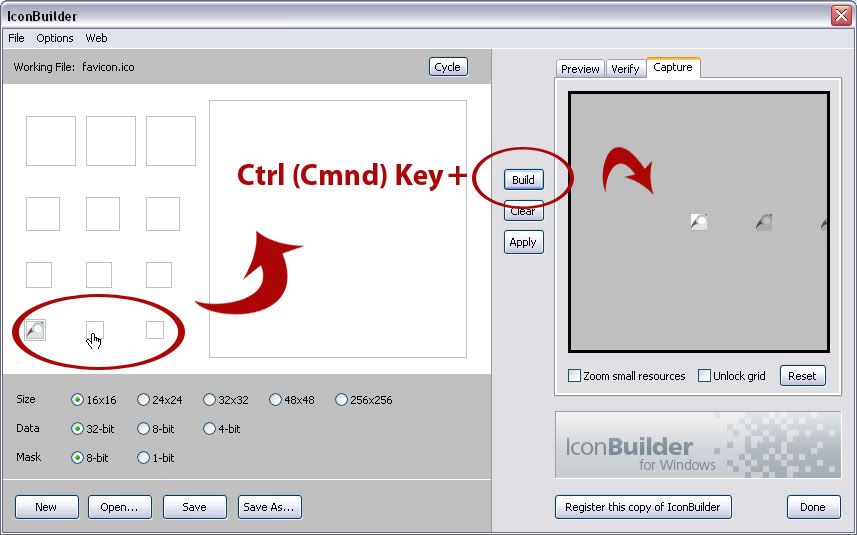
Go to the menu Filter > Iconfactory > Icon Builder to display the Icon Builder panel. You will see similar icon grid framework as seen in Windows.psd file at the left side of the panel. Click on the first icon template box. You will see the first box (with your tiny logo on it) in Window.psd is highlighted at the right side panel of Icon Builder. Hit Control (Command) key and Build button at the same time. Your logo will be displayed at the left panel soon after and do the same for the rest of icon template boxes.

Photobucket
Click to see bigger image

Click Save As button to produce favicon.ico file and upload it.

Put the following HTML code in between your ‹head› tags:

<!-- Favicon --><link href='http://yoursite.com/images/favicon.ico' rel='shortcut icon' type='image/x-icon'/>

Reload your browser and see if you like your new favicon now ;)

See it in action!

Photobucket

Are you using Mac? No worries, you can read a tutorial: how to create a favicon with IconBuilder in Macintosh posted by Benedikte Vanderweeën.

Related Post:


Featured Post

Monster Illustration Vectors that Work

Not all monsters are scary and we can apply them in a design composition or illustration. You may want to search bunch of new created monst...